Free beta
Get Signavo on your iPhone.
The beta comes through TestFlight, Apple's own app for apps that are still in testing. It's three steps.
Needs an iPhone running iOS 17 or later.
signavo.app/get
On a computer?
Scan the code with your iPhone camera. The guide opens on your phone, and you can tap through from there.
-
Step 1: Get TestFlight

Tap Get TestFlight is free and it's in the App Store. Already have it? Skip to step 2.
-
Step 2: Open the invitation
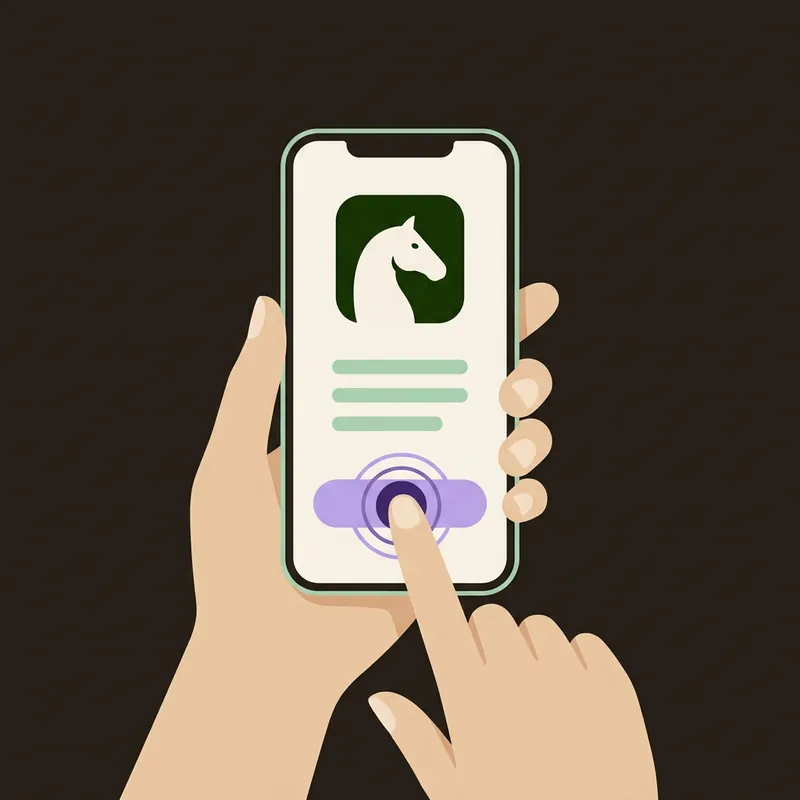
Accept, then Install Tap the button below. TestFlight opens and shows Signavo. Tap Accept, then Install. If Apple's web page opens instead, tap the button under Apple's step 2.
-
Step 3: Open Signavo
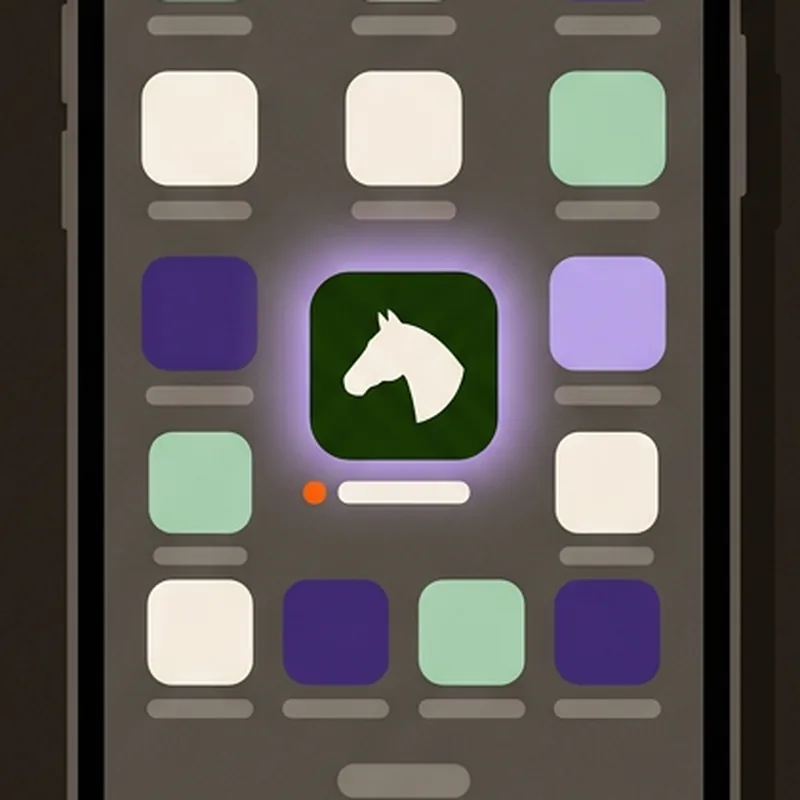
Look for the orange dot Signavo is now on your home screen. The small orange dot next to its name just means it's a test version. Open the app, sign in with your email and turn on notifications. Then find the show, tap the rider in the start list and tap Follow.
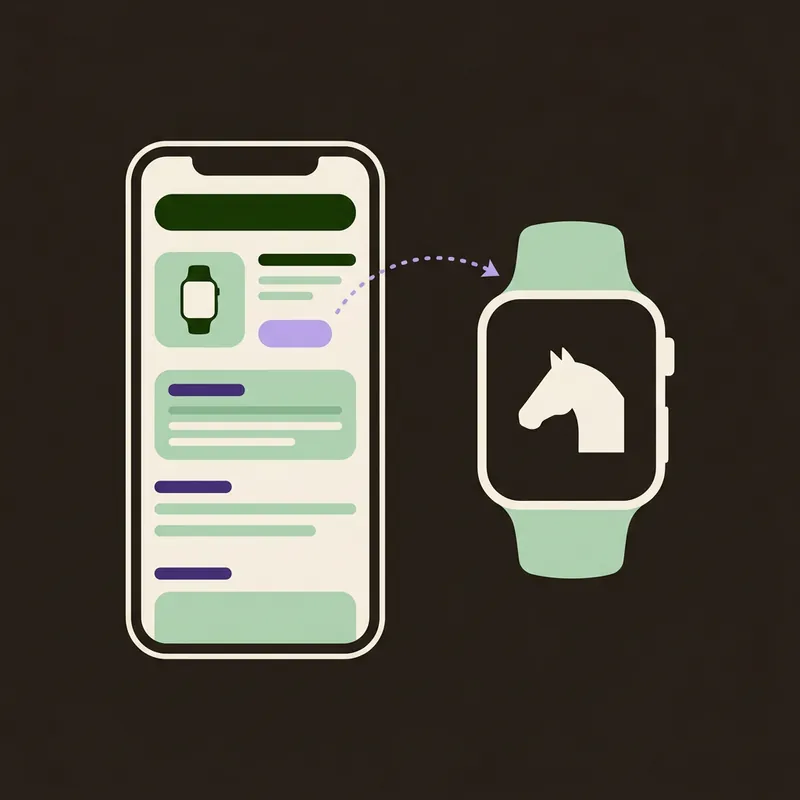
Got an Apple Watch?
Add the watch app from your iPhone once Signavo is installed: open TestFlight, tap Signavo, then open App Details under Information. The button for the watch app is there.
If something's off
The button under Apple's step 2 doesn't work.
Then TestFlight is probably not on the phone yet. Get it in step 1 on this page and try again.
Does the test version stop working?
Yes, after 90 days at most. That's Apple's rule. When a new version is out, it's waiting in TestFlight, and with automatic updates turned on, TestFlight installs it for you.
Is Signavo in the App Store?
Not yet. For now, TestFlight is the way in.
Stuck? Email us and we'll help. hej@signavo.dk